Avaya Phones #
Defaulting an Avaya Phone #
Avaya phones can be reset to defaults from their admin menu. Select 'Administration' in the admin menu on the phone and enter the phone's PIN (default 27238). Then navigate down to 'Reset to defaults' and press 'Select'.
Once these steps have been completed, the phone should reboot, allowing the normal automatic provisioning process to be followed.
Manual Provisioning #
If there are problems with the Avaya provisioning service or the phone does not have network access to it, you may need to provide the details to the phone manually on how to talk to the ~.Dimensions.~ system.
To complete manual provisioning, you will need the phone's unique provisioning username/password combination from the Device Configuration area.
Log into the phone's web UI and navigate to the 'IP Configuration\Servers' section.
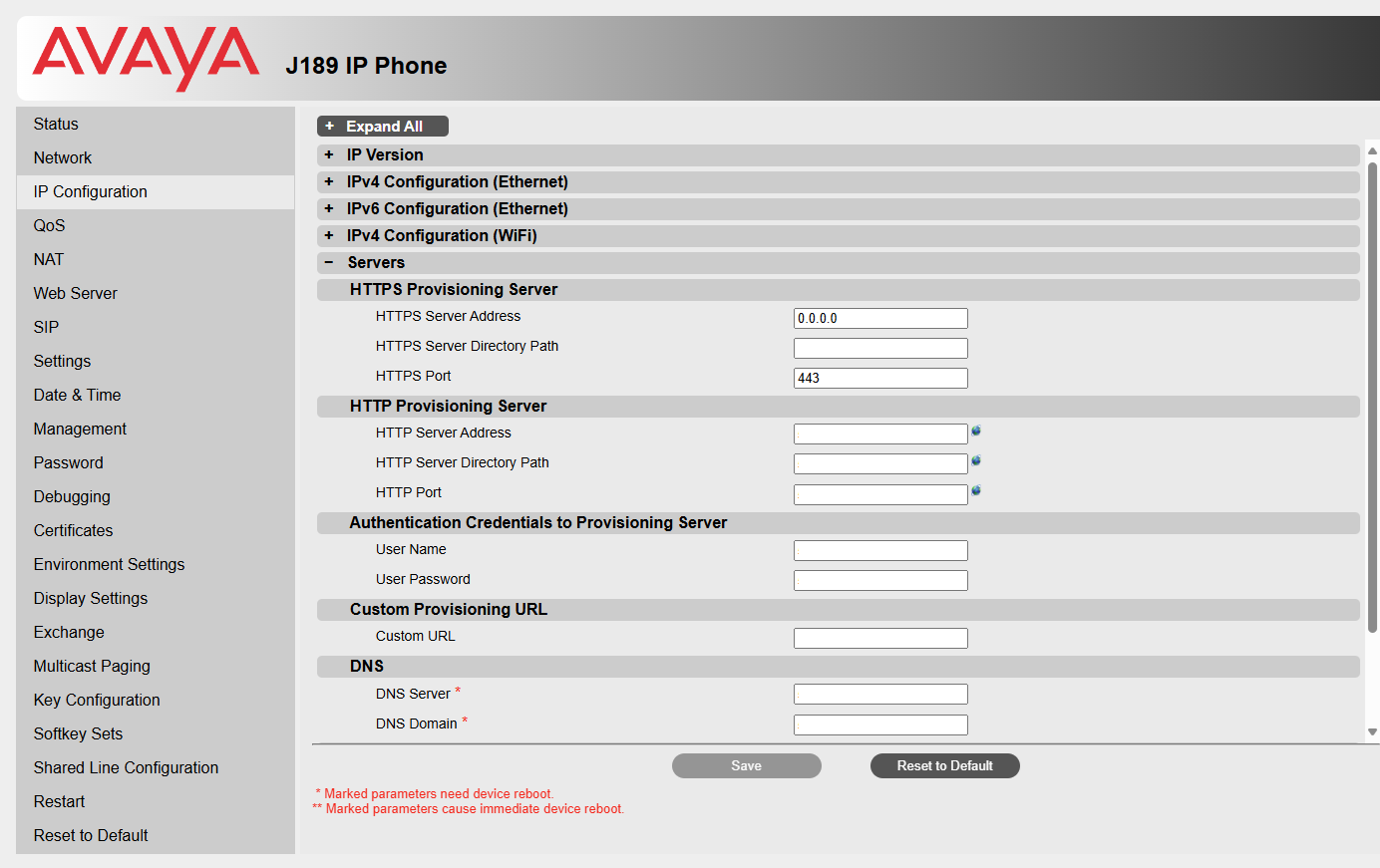
Populate the following options and save the settings down to complete the provisioning process:
HTTPS Provisioning Server
- HTTPS Server Address
- HTTPS Server Directory Path
- HTTPS Port
Authentication Credentials to Provisioning Server
- User Name
- User Password
info
Once provided, click 'Save' and then reboot the phone.
802.1x #
Supported 802.1x Types:
- EAP-TLS
- EAP-MD5
- EAP-PEAP/MSCHAPv2
EAP-TLS
For EAP-TLS support, the certificates/keys need to be hosted where they can be accessed by URL for the Avaya phones to download.
Provide URLs for each of the certificates and private keys required in the configuration.
Example
Here is an example of the fields that should be configured in the ~.Dimensions.~ portal for Avaya phones.
| ~.Dimensions.~ Config | Avaya Config | Notes |
|---|---|---|
| Identity | FORCE_DOT1XID | Specifies the identity or username used for authenticating the phone. |
| Root / Intermediate Certificate[^1] | TRUSTCERTS | It configures the URL for uploading the 802.1x CA certificate. The format of the certificate must be *.pem, *.txt. Max URL length 255 characters. |
| Trusted Certificate[^1] | TRUSTCERTS | It configures the URL for uploading the 802.1x CA certificate. The format of the certificate must be *.pem, *.txt. Max URL length 255 characters. |
| Local Certificate | PKCS12URL | It configures the URL for uploading the 802.1x client certificate in PKCS #12, containing both the certificate and the private key. The format of the certificate must be *.p12 or *.cer. Max URL length 255 characters. |
info
If the 'Local Certificate' file containing the cert and private key is password protected, the password must either be entered on the phone or passed in a custom config file:
SET PKCS12PASSWORD "PKCS12PASS"
For more information, check the Avaya Administrator Guide.
EAP-PEAP/MSCHAPv2
For EAP-TLS support, the certificates/keys need to be hosted where they can be accessed by URL for the Avaya phones to download.
Provide URLs for each of the certificates and private keys required in the configuration.
Example
Here is an example of the fields that should be configured in the ~.Dimensions.~ portal for Avaya phones.
| ~.Dimensions.~ Config | Avaya Config | Notes |
|---|---|---|
| Identity | FORCE_DOT1XID | Specifies the identity or username used for authenticating the phone. |
| Password | FORCE_DOT1XPSWD | Specifies the password for the identity used for authenticating the phone. |
| Root / Intermediate Certificate[^1] | TRUSTCERTS | It configures the URL for uploading the 802.1x CA certificate. The format of the certificate must be *.pem, *.txt. Max URL length 255 characters. |
| Trusted Certificate[^1] | TRUSTCERTS | It configures the URL for uploading the 802.1x CA certificate. The format of the certificate must be *.pem, *.txt. Max URL length 255 characters. |
[^1] : The Root and Trusted Certs URLs are combined in a list. Ensure the total length is less than 255 characters.
For more information, check the Avaya Administrator Guide.
EAP-MD5
For EAP-MD5 support, populate the 'Identity' and 'Password' fields in the phone's configuration or customer-wide configuration.
Custom Configuration Files #
The addition of custom configuration files is supported for Avaya phones. Avaya configurations are entered with the word 'SET' followed by a simple key/value pair, with a space separating them.
The example below shows how to disable the Call Log feature (remember to enter each configuration item on a separate line):
SET ENABLE_CALL_LOG 0info
If you browse to the Avaya phone's web interface, the key/value pair options are shown in the tool-tip for each configuration that is available for the phone.
Alternatively, you can refer to the Avaya Phone Configuration Guide for more details on available configuration options.